
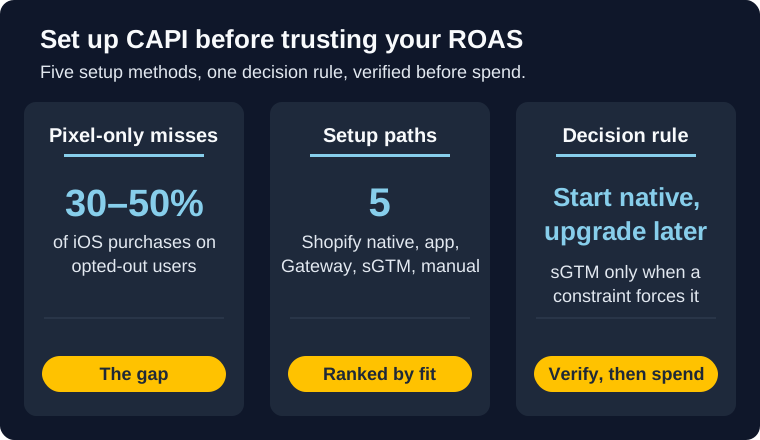
Your reported ROAS is higher than reality, and you can't tell by how much until your Conversions API is firing. Pixel-only tracking misses 30 to 50 percent of iOS purchases on users who opt out, and your campaign optimizer trains on the gap. Every guide on how to set up the Meta Conversions API either pushes a vendor's tool or stays so generic it doesn't pick a method for you. This one does. Five real setup paths for Meta CAPI, what each one actually costs, the failure modes I keep seeing in production, and a verification workflow that proves your CAPI is doing what you think it's doing.
What this guide covers
- The 5 CAPI setup methods, ranked by who they fit: Shopify native, partner app, CAPI Gateway, server-side GTM, manual API.
- Why Meta's 2026 one-click CAPI release reset the decision tree for most DTC operators.
- A decision rule: start with Shopify native + one-click, upgrade to server-side GTM via Stape when a specific constraint forces it.
- How event deduplication actually works, and what breaks when
event_iddiverges between pixel and server. - The 4-step Test Events verification that proves CAPI is firing before you spend a dollar.
- Five real failure modes I keep seeing on Shopify and GTM setups, with the fix for each.
Why CAPI Matters (and What It Isn't)
The Meta Pixel is a browser-side tracker. It fires JavaScript when a visitor takes an action on your site and sends an event to Meta: PageView, AddToCart, Purchase, Lead. The optimizer uses those signals to decide which users to show your ads to next, and the attribution layer uses them to credit conversions back to specific campaigns.
That works until the browser blocks it. Apple's App Tracking Transparency framework, ad blockers, consent banners, and iOS 17's Link Tracking Protection all degrade browser-side events at the source. For DTC stores with iOS-heavy customer bases, pixel-only tracking can miss 30 to 50 percent of purchases. The campaign optimizer doesn't see those missing conversions, so it trains on the wrong signal and your reported CPA looks better than the truth. Your blended MER tells you something's off long before your in-platform ROAS does. For the full breakdown of what iOS opt-out actually costs, see our iOS attribution guide for Meta ads.
The Conversions API (CAPI) is the server-side complement to the pixel. Instead of the browser sending the event to Meta, your server sends it directly, server-to-server. iOS opt-out doesn't apply to server calls. Neither do ad blockers or browser privacy features. The signal Meta couldn't see in the browser shows up on the server side.
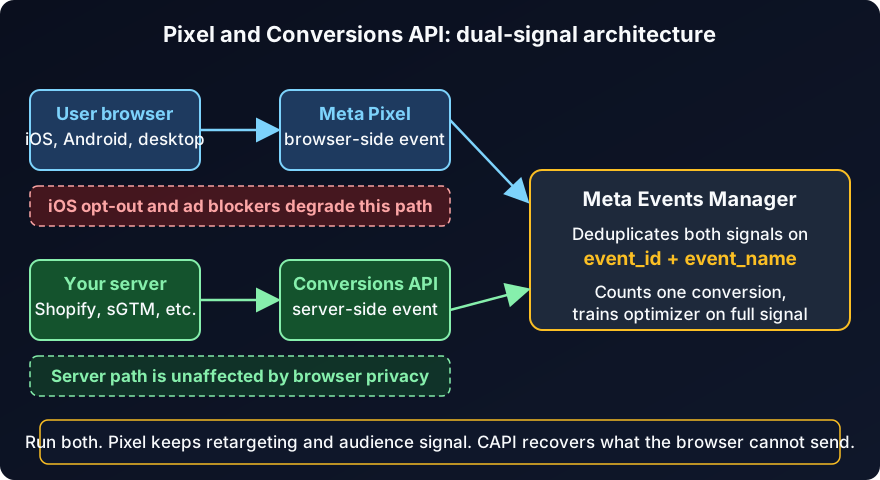
CAPI is a complement to the pixel, not a replacement
Run both. Pixel from the browser, CAPI from the server, deduplicated on a shared event_id. If you run CAPI alone, you lose retargeting audience signal (Meta still builds audiences from pixel events). If you run pixel alone, you lose opted-out users. The right setup runs both and uses event deduplication so Meta counts each conversion once. We'll cover deduplication in detail later in the post. For now, treat "do I need both?" as a settled question. You do.
The 2026 One-Click Reset
In early 2026, Meta rolled out a one-click CAPI setup inside Events Manager. For standard web events on a supported platform (Shopify is the marquee case), the wizard handles token generation, event mapping, and deduplication for you. You confirm a couple of settings and Shopify starts sending server events to Meta within minutes. Meta tends to roll these features out gradually, so if you don't see the one-click prompt yet, the manual steps below get you to the same place.
That changes the decision tree for most DTC operators. Before the release, "set up CAPI" meant choosing between a Meta-hosted middleware container (Conversions API Gateway), a partner app, server-side GTM, or writing API code yourself. Now, for the standard ecommerce event set on Shopify, the choice is largely made for you.
Two things the one-click does not cover:
- Custom events beyond Meta's standard set. Quiz completions, upsell views, subscription renewals, anything you've defined yourself. Those still need a different method.
- Multi-platform routing. If you also want to send the same server events to Google Enhanced Conversions, TikTok Events API, or Klaviyo, the one-click doesn't help. You need one server-side layer that fans out, which is what server-side GTM is for.
The release also de-emphasized the Conversions API Gateway. Meta's own positioning has cooled, and unless you have a specific reason to host Meta's middleware in your own AWS account, you can skip it. We'll cover what's left in the method-by-method breakdown below.
The 5 Setup Methods, Compared
There are five methods because there are five distinct places the server call can originate from. Everything else collapses into one of these. "Meta one-click" is a wizard for method 1. "Klaviyo's CAPI integration" is method 2. "WordPress plugin for CAPI" is method 1. "Zapier glue to Meta API" is method 5 with a low-code wrapper. If a so-called method doesn't change where the server call originates, it isn't a separate method.
Method 1: Shopify Native CAPI Integration
You install Meta's official Shopify channel app, paste your Pixel ID, and toggle CAPI on. Shopify's servers fire standard events to Meta automatically. The 2026 one-click release makes the setup nearly automatic for the standard event set.
- Setup time: 10 to 15 minutes
- Dev needed: No
- Monthly cost: Free
- Event coverage: Standard web events only (PageView, ViewContent, AddToCart, InitiateCheckout, Purchase). No custom events.
- Who it fits: Most Shopify DTC operators running ads on Meta only or Meta plus one other platform handled separately.
- What breaks: Silent event drops on custom or headless checkouts, especially when third-party checkout apps intercept the cart flow.
Method 2: Partner App (Cometly, Triple Whale, Northbeam, Polar, etc.)
A SaaS attribution platform sits between your store and Meta. It collects every event for its own post-iOS attribution dashboard, and piping a copy of those events to Meta's CAPI is a checkbox in its settings. You're not buying CAPI here. You're buying an attribution layer and CAPI rides along.
- Setup time: 30 minutes to a few hours, depending on the platform
- Dev needed: Usually not
- Monthly cost: $200 to $1,500 per month
- Event coverage: Full, including custom events the platform supports
- Who it fits: Operators already paying for one of these tools for attribution. Don't buy a partner app just for CAPI. The math doesn't work.
- What breaks: Event_id format mismatch between the partner-app server event and the browser pixel. Many platforms generate their own event_id rather than syncing to the pixel's, which breaks deduplication with no error anywhere in Events Manager.
Method 3: Meta Conversions API Gateway
Meta-hosted middleware that you deploy into your own AWS account. Your pixel events route through the gateway, which forwards them server-side to Meta. Before the one-click release, this was the closest thing to a no-dev server-side option for non-Shopify stores. It's still functional, but Meta has de-emphasized it.
- Setup time: Half a day to a day
- Dev needed: Some (AWS console, CloudFormation, basic networking)
- Monthly cost: AWS hosting costs only (usually $20 to $100/month, depending on traffic)
- Event coverage: Full
- Who it fits: Teams already operating in AWS who want Meta-managed middleware they can host themselves. Niche.
- What breaks: Underused now. The community knowledge base around it is thinner than for server-side GTM, so troubleshooting is harder.
Method 4: Server-Side GTM (Stape or Self-Hosted)
A server-side Google Tag Manager container runs on your server (or Stape's hosted infrastructure), and your browser GTM container routes events through it. The sGTM container fires CAPI to Meta plus equivalent server-side endpoints for Google, TikTok, Snap, Klaviyo, or anywhere else. One layer, every destination.
- Setup time: 1 to 3 hours for a GTM-fluent operator, much longer for a first-timer
- Dev needed: Some (Stape handles hosting; you handle tag configuration)
- Monthly cost: $20 to $100/month on Stape, or your own GCP costs if self-hosted
- Event coverage: Full, including any custom event you can fire in browser GTM
- Who it fits: Operators running ads on more than one platform, or anyone who needs custom events that platform-native integrations don't expose
- What breaks: GTM trigger misconfigurations. Setting a Purchase tag to fire on
gtm.jsinstead of thepurchaseevent is the most common one I see. It fires on every page load, inflates conversions, and looks like the campaign is winning until ROAS deteriorates.
Method 5: Manual API Integration on Your Own Server
Your dev team writes server code that POSTs directly to Meta's Conversions API endpoint. Full control of payload, event_id, batching, and any custom event you want to fire.
- Setup time: 1 to 3 days of dev work
- Dev needed: Yes
- Monthly cost: Your dev time
- Event coverage: Whatever you build
- Who it fits: DTC brands on custom or headless stacks (headless Shopify with Stripe checkout, Next.js storefronts, custom subscription flows). Almost no one outside that profile needs this.
- What breaks: Missing match keys (hashed email, phone,
fbp,fbc) in the user_data block. Match keys drive Event Match Quality, and low EMQ means Meta can't reliably tie the server event to a user profile, which kneecaps the optimizer.
At a glance: who each method is for
| Method | Setup time | Dev? | Monthly cost | Custom events? | Multi-platform? | Best for |
|---|---|---|---|---|---|---|
| 1. Shopify native + one-click | 10 min | No | Free | No | No | Most Shopify DTC stores |
| 2. Partner app | 30 min | No | $200 to $1,500 | Yes | Partial | Stores already paying for attribution |
| 3. CAPI Gateway | Half day | Some | $20 to $100 | Yes | No | AWS-native teams (niche) |
| 4. Server-side GTM (Stape) | 1 to 3 hrs | Some | $20 to $100 | Yes | Yes | Multi-platform or custom events |
| 5. Manual API | 1 to 3 days | Yes | Dev time | Yes | Yes | Custom or headless stacks |
Which Method Fits Your Stack
Most CAPI guides hedge here. Mine doesn't. If you're running Meta ads on a Shopify or similar ecom stack, the call is straightforward.
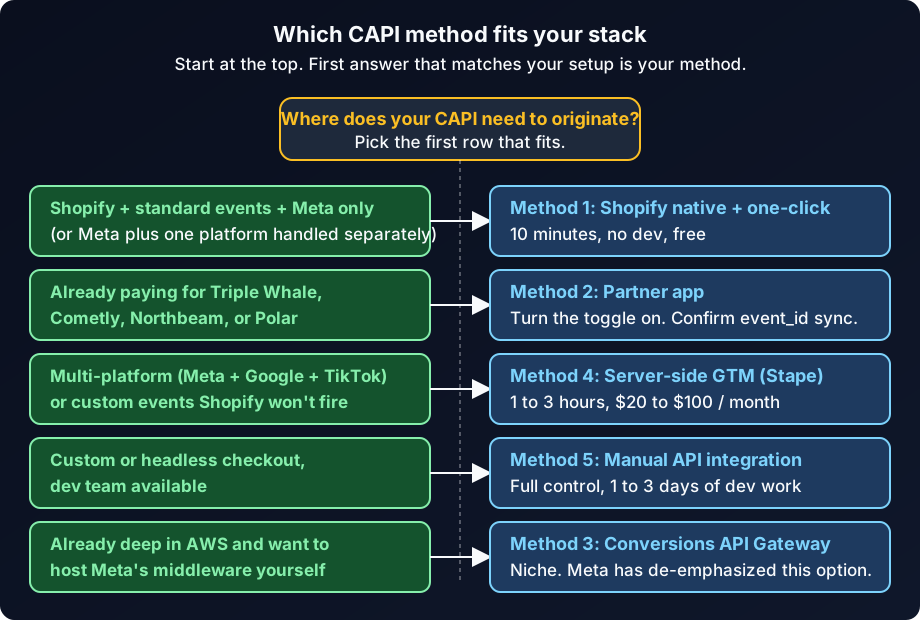
The decision rule, in five lines:
- Shopify, standard events, ads on Meta only or Meta plus one other platform handled separately: Method 1 (Shopify native + one-click).
- Already paying for Triple Whale, Cometly, Northbeam, Polar, or similar: Method 2. Turn the toggle on, confirm event_id is syncing to the pixel. Don't pay for two CAPI sources.
- Running ads on Meta plus Google plus TikTok (or planning to), or you need custom events that Shopify native won't fire: Method 4 (server-side GTM via Stape).
- Custom or headless checkout, dev team available: Method 5.
- Already deep in AWS and Meta-hosting is a hard requirement: Method 3.
For most Shopify operators reading this, the answer is method 1 today with method 4 as the upgrade path when you outgrow it. The other three exist for real reasons, but they're situational, not default.
Before you scale spend, see the kind of competitive read you can get. The Mako Metrics sample reports show how we lay out a brand's live creative from the Meta Ad Library: the formats, hooks, and offers it runs while your own tracking comes back online.
Step-by-Step: Shopify Native CAPI (the Default Path)
Most readers will stop here, and that's fine. This is the path that fits the majority of DTC operators on Shopify. If your stack falls outside this profile, skip to the next section.
Prerequisites
You need the Meta Pixel already installed and firing on your store. If you don't have a pixel yet, follow our Meta Pixel setup guide first, then come back. You also need Shopify store owner access or a staff account with "Manage sales channels" enabled, plus admin access to your Meta Business Manager.
Step 1: Connect the Meta channel in Shopify
- In your Shopify admin, go to Settings → Apps and sales channels.
- Search for Facebook & Instagram (Meta's official channel app) and install it.
- Connect your Facebook account and Business Manager.
- Select your pixel from the dropdown. Confirm the Dataset ID matches the one in Events Manager.
- Set Customer data-sharing to Maximum. This is what enables Conversions API on top of the pixel through Shopify's Commerce Platform integration.
- Save.
Step 2: Run the one-click CAPI setup in Events Manager
- Open Meta Events Manager and select your pixel/dataset.
- Click the Settings tab.
- Scroll to the Conversions API section. If your Shopify connection is recognized, you'll see a "Set up Conversions API" or "One-click setup" prompt.
- Click through the wizard. It auto-generates an access token, maps the standard events Shopify already sends, and enables deduplication using Shopify's built-in event_id format.
- Confirm the connection status reads "Connected" or "Active." It can take 15 to 30 minutes for the first server events to appear.
Step 3: Confirm your Aggregated Event Measurement priority
iOS users who've opted out of tracking can only get attributed to one event per session, and Meta picks the highest-priority one. After enabling CAPI, double-check your priority list still reflects what you're optimizing toward:
- Events Manager → your pixel → Aggregated Event Measurement → Configure Web Events.
- Ecommerce: Set Purchase as priority 1, AddToCart as priority 2.
- Lead-gen: Set Lead as priority 1.
Each pixel supports up to eight prioritized events. Keep the list tight. Anything you're not actively optimizing toward is wasted slots.
Step 4: Copy the access token to your password manager
Shopify auto-generates the CAPI access token, but you'll want a copy in case you need to debug, migrate the connection, or rebuild it. Pull it from Events Manager → Settings → Conversions API → "Manage integrations" (the exact label moves around). Save it somewhere your team can find it.
Step 5: Wait 30 minutes, then verify
Don't skip this. We'll cover the full verification workflow below, but the short version: run a test purchase, watch Test Events for both pixel and server events to land, and confirm deduplication is working. If you launch a campaign without this check, you won't notice anything's wrong until your in-platform ROAS doesn't match your blended MER and someone asks why.
Upgrade Path: Server-Side GTM via Stape
Three triggers tell you it's time to upgrade from Shopify native to server-side GTM:
- You need custom events Shopify won't fire (quiz completions, upsell views, subscription renewals, in-app actions).
- You're running ads on Meta plus Google plus TikTok and you want one server-side layer feeding all three CAPI-equivalents.
- Shopify's native integration is dropping events. Nothing surfaces an error; it shows up as your Test Events count for Purchase being meaningfully lower than your Shopify order count over the same window.
The setup, summarized:
- Provision a server container. Stape hosts it for $20 to $100/month depending on your event volume, or you can self-host on Google Cloud for raw infrastructure cost.
- Point your web GTM container at the new server container. This is a one-time URL change in GA4 tag config.
- Configure a Facebook Conversions API tag in the server container. Map fields, set the event_id reference to match what your pixel uses on the browser side, route Purchase plus any custom events through it.
- Verify in Test Events. Same workflow we'll cover below.
Budget 1 to 3 hours if you've configured server GTM before. Budget a full day plus follow-up debugging if this is your first time. Stape's documentation is the cleanest in the space, and most failure modes are GTM configuration issues, not server problems.
Event Deduplication Done Right
This is where signal breaks. Get deduplication wrong and your reported conversion count inflates, your CPA looks better than reality, and the Meta optimizer trains on bad data. For weeks. Then your blended ROAS drifts and nobody knows why.
Deduplication works on three matching rules. Per Meta's deduplication documentation, all three must match between the pixel event and the server event:
event_idis identical on both sides. Use a stable unique identifier. Order ID for Purchase. Lead ID for Lead. Cart token for AddToCart if you care about deduplicating it. Don't generate event_id separately on each side or they'll never match.event_namematches exactly, including case.Purchaseandpurchaseare different events to Meta's matching logic. Most platform integrations get this right, but custom code can drift.event_timeis within a small tolerance window. Usually fine if both events fire close to each other. The pixel fires immediately, your server event should fire within a few seconds.
Here's what the matching pair looks like.
Browser pixel event:
fbq('track', 'Purchase', {
  value: 99.98,
  currency: 'USD',
  content_ids: ['SKU-123'],
  content_type: 'product'
}, {
  eventID: 'order-78234'
});
Server CAPI event (simplified payload):
{
  "event_name": "Purchase",
  "event_id": "order-78234",
  "event_time": 1716123456,
  "user_data": {
    "em": ["hashed-email"],
    "ph": ["hashed-phone"],
    "fbp": "fb.1.1234567890.987654321",
    "fbc": "fb.1.1234567890.AbCdEf"
  },
  "custom_data": {
    "value": 99.98,
    "currency": "USD",
    "content_ids": ["SKU-123"],
    "content_type": "product"
  }
}
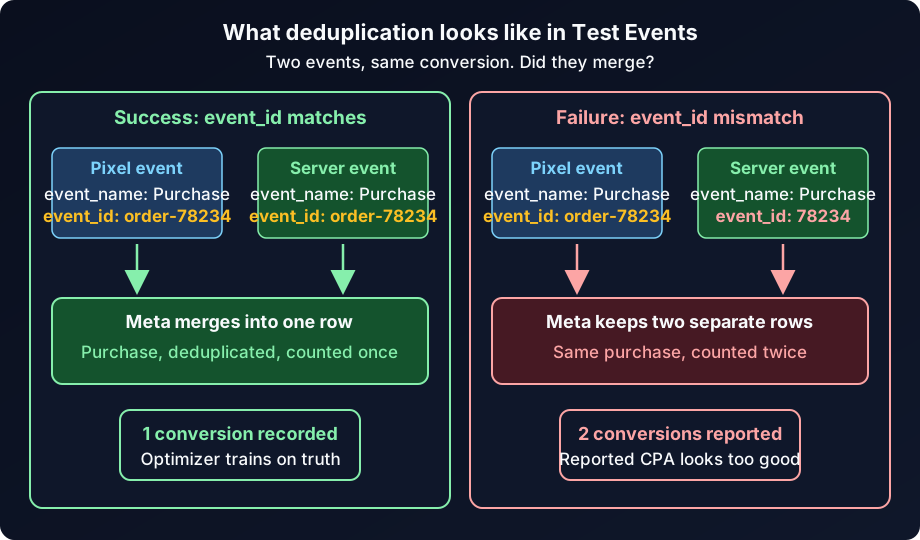
Same event_id. Same event_name. Close event_time. Meta merges them into one conversion.
If event_id is missing from either side, or the values don't match, Meta keeps both and double-counts. You'll see it in two places: your in-platform Purchase count rising above your Shopify order count for the same window, and your Test Events tab showing two rows for the same purchase instead of one merged row.
Verifying CAPI Is Actually Firing
"Installed" is not the same as "firing." This is the step most guides skip and the one that catches the most production failures. Run it before any campaign goes live with the new CAPI setup.
The 4-step verification:
- Open Test Events. Events Manager → your pixel → Test Events tab. Click "Test browser events," enter your test URL, and click "Open website."
- Trigger the conversion. Run a real test purchase on your site (use a test card in Shopify's test mode or a small real purchase you can refund). For lead-gen, submit a test form on the page that fires Lead.
- Watch for both events. Within 30 to 60 seconds, you should see two entries for the same purchase: one tagged "Browser" (from the pixel) and one tagged "Server" (from CAPI). Both should carry the same
event_id. - Confirm deduplication. The two rows should merge into a single deduplicated event. If you see two separate, un-merged rows for the same purchase, your event_id is mismatched. Fix it before launching.
While you're in Test Events, glance at Event Match Quality for each event. Aim for 6.0 or higher. EMQ is Meta's confidence score for how well it can match the event to a user profile. Low EMQ usually means your server event is missing match keys: hashed email (em), hashed phone (ph), fbp, or fbc. The fix is on whoever owns the server payload (Shopify, your partner app, your sGTM tag, or your custom code).
Five Real Failure Modes
These are the failures I see in production, not the textbook ones. If your CAPI looks installed but something feels off, start here.
1. Shopify native drops events on custom checkouts
Cause: A third-party checkout app, headless storefront, or custom Stripe flow intercepts the cart and bypasses Shopify's standard event triggers. Shopify's CAPI integration only fires on its own native checkout flow.
Fix: Compare your Shopify order count and your Meta Test Events Purchase count over the same 7-day window. If Meta is meaningfully lower, the silent-drop pattern is likely. Move to server-side GTM (method 4) so you control when the Purchase event fires.
2. GTM Purchase tag fires on gtm.js instead of purchase
Cause: Inside Google Tag Manager, the Facebook Conversions API tag was configured with the wrong trigger. Instead of firing on the purchase dataLayer event, it fires on gtm.js, which means it fires on every page load.
Fix: GTM → Triggers → confirm the trigger is set to "Custom Event" with event name equal to purchase (or your custom event name), not gtm.js. Republish the container, then re-run the Test Events verification above. If you're seeing inflated Purchase counts in Ads Manager but reasonable counts in Shopify, this is usually it.
3. event_id format mismatch between pixel and server
Cause: Pixel sends event_id as order-78234 while the server sends it as 78234 or Order-78234. Capitalization, prefixes, or formatting drift on one side. Meta treats them as different events and double-counts.
Fix: Decide on one canonical event_id format and use it everywhere. The order ID from your commerce platform is the right anchor. Make sure both pixel and server pull from the same source, not from separate generators.
4. Partial event payload, missing match keys
Cause: The server event lands without hashed email, hashed phone, fbp, or fbc. Event Match Quality drops below 6.0. Meta can't reliably tie the server event to a user profile, so the optimizer can't use it for delivery decisions.
Fix: Check the user_data block in your server payload. At a minimum, send hashed email (SHA-256 lowercase), fbp (the pixel's cookie value if available), and fbc (Meta's click ID, captured from the fbclid URL parameter on landing pages). Shopify and most partner apps handle this automatically; manual API integrations are where this usually breaks.
5. AEM priority not updated after adding server events
Cause: You enabled CAPI but forgot to revisit Aggregated Event Measurement. Your priority list still reflects the pre-CAPI state, and iOS opt-out users are being attributed to a lower-value event than the one you're now successfully tracking server-side.
Fix: Events Manager → Aggregated Event Measurement → Configure Web Events. Confirm Purchase is priority 1 for ecommerce, Lead is priority 1 for lead-gen. If you added a new custom event via CAPI, slot it in based on its commercial value, not its frequency.
If your CAPI is firing cleanly and conversions still look off in Ads Manager, the next layer is campaign configuration and attribution settings. Our Facebook ads troubleshooting checklist covers that next set of checks.
What This Means for Your Reporting
Here's the part nobody warns you about: once CAPI is firing cleanly, your reported numbers will change. Sometimes by a lot.
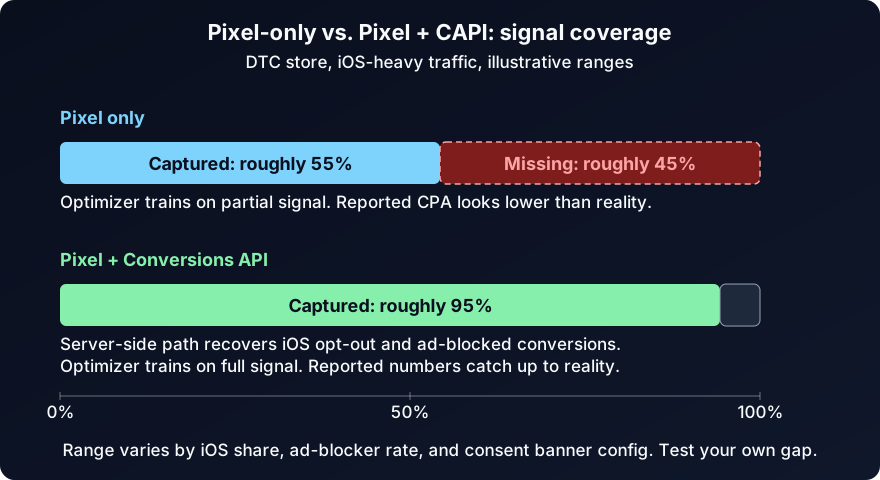
If you were pixel-only before, your in-platform conversion count is about to rise. The iOS opt-out conversions you couldn't see in the browser are now flowing in through the server. Your reported Purchase count goes up. Your reported CPA goes down. Your reported ROAS goes up. That's the win.
But if you were over-reporting before because deduplication was broken, your reported numbers might drop after a clean CAPI setup, even though actual performance hasn't changed. Two conversions getting double-counted as four, then deduplicating to two, looks like a 50 percent drop in conversions on paper. That drop is the truth catching up to your reports.
Watch your blended MER, not just your in-platform ROAS, during the first 14 days after a CAPI change. MER is platform-agnostic. If MER is stable while in-platform ROAS shifts, you're seeing reporting catch-up, not performance change. Our breakdown of MER vs. ROAS for Meta ads walks through how to set up the comparison and what each shift means.
The reporting impact is also why you want to ship CAPI before scaling spend, not after. Make the reporting baseline shift on a steady budget, then judge scale decisions against the new baseline.
Final Take
If you're on Shopify and running ads on Meta, start with the native integration plus the 2026 one-click CAPI setup. Free, ten minutes, no dev. It covers the 80 percent. Upgrade to server-side GTM via Stape when a specific constraint forces it (custom events, multi-platform, or silent drops). The other three methods are legitimate options, but they're situational.
Whichever method you pick, the failure mode that costs the most is the same: assuming "installed" means "firing." Run the Test Events verification before launching anything. Confirm both pixel and server events land, share the same event_id, and merge into one row. If they don't, you don't have CAPI. You have a CAPI configuration sitting next to a pixel that's still doing all the work.
Once your numbers are trustworthy, the next question is whether your competitors are running on full signal or degraded signal. Mako Metrics sample reports show you what creatives, offers, and formats brands are actively running in the Meta Ad Library. If you want recurring competitive intel rather than a one-off look, the Competitor Snapshot report bundles it into a quarterly PDF you can hand to your CMO or client.
FAQ
Is the Meta Conversions API free?
The API itself is free. The cost depends on which setup method you pick. Shopify native and direct manual API integration are free aside from your own dev time. Conversions API Gateway runs on your AWS hosting bill. Server-side GTM via Stape runs $20 to $100/month. Partner apps run $200 to $1,500/month, but you're buying an attribution platform, not paying for CAPI specifically.
Do I still need the Meta Pixel if I have CAPI?
Yes. Run both. The pixel still drives browser-side retargeting audiences and event signal for users Meta can track in the browser. CAPI fills the gap for opted-out and ad-blocked users. Run them together with matching event_id so Meta deduplicates the overlap.
How long does CAPI setup take on Shopify?
About 10 to 15 minutes if you already have the Meta channel installed and your pixel firing. The 2026 one-click setup compressed what used to be a 30-to-60 minute walkthrough into a wizard. The verification step (running a test purchase through Test Events) takes another 5 to 10 minutes and you should not skip it.
How do I know my Conversions API is actually working?
Use the Test Events tab in Meta Events Manager. Run a real test purchase or lead submission, then confirm two things: both the browser pixel event and the server CAPI event land within 30 to 60 seconds, and they merge into a single deduplicated row with the same event_id. If you see two separate un-merged rows, your event_id is mismatched and you need to fix it before launching a campaign.
What is event deduplication and why does it matter?
When both the pixel and CAPI fire for the same conversion, Meta receives two copies. Without deduplication, both count. Your reported Purchase count inflates, your CPA looks lower than reality, and your campaign optimizer trains on data that doesn't match what your store is actually doing. Deduplication uses a shared event_id on both events so Meta can match them and count one conversion. Get this wrong and you'll think your campaigns are winning until your blended ROAS tells you otherwise.